GA4 ecommerce tracking works by sending a defined set of events (view_item, add_to_cart, begin_checkout, purchase and a few more) from your store to Google Analytics, each carrying the products, currency and value involved. Google describes it as a way to collect and analyze how customers interact with your store, including what they view and buy. Nothing is tracked by default on a custom store: someone has to push those events. This guide covers which events matter, what each needs, how to implement them, how to test them, and where revenue numbers usually go wrong.
TL;DR
- GA4 has no separate “enhanced ecommerce” switch. Ecommerce is a set of recommended events you implement through the Google tag or Google Tag Manager’s data layer.
- The purchase event needs a currency, a value, a transaction_id and an items array. Without transaction_id, duplicates slip through.
- Test everything in DebugView before trusting a report. Data typically shows up in standard reports within 24 to 48 hours.
- The most common failures are double-firing (Google tag plus Tag Manager), events placed before the tag, and missing parameters.
- Browser-side tracking misses some orders. For high-volume stores, a server-side layer closes the gap.
Table of Contents
- What GA4 ecommerce tracking actually measures
- “Enhanced ecommerce” in GA4: what the term means now
- The GA4 ecommerce events to implement
- How to set up GA4 ecommerce tracking
- If your store runs on Shopify
- How to test your GA4 ecommerce events
- Common GA4 ecommerce tracking errors
- Perspective: where browser tracking runs out
- Getting more from the data once it is clean
- When to bring in an engineering partner
- FAQ
- Sources
What GA4 ecommerce tracking actually measures
GA4 does not read your cart. It only knows what your site tells it. Every shopping action is an event with parameters, and the ecommerce reports are built from those events. That is why two stores with the same GA4 property type can have wildly different data quality: one sends a clean purchase event with every parameter, the other sends a bare page view on the thank-you page.
When the events are in place, you can answer questions like:
- Which product lists and promotions get clicked, and which sell?
- Where in the cart-to-checkout path do shoppers leave?
- Which products are added to carts but rarely bought?
- What revenue, by channel and campaign, did each purchase produce?
The same data also does work outside reports. Google notes that ecommerce data can populate audiences and be exported to ad platforms such as Google Ads for data-driven campaigns. If you are also checking whether AI assistants send you visitors, you can next to your ecommerce reports, so revenue from those sessions is visible too.
“Enhanced ecommerce” in GA4: what the term means now
Many people still search for enhanced ecommerce because the term comes from Universal Analytics, where it was an add-on you switched on and fed with a separate set of actions. In GA4 there is no add-on. The same shopping journey is covered by recommended events, and the setup is the event implementation itself. If a guide tells you to flip an enhanced ecommerce toggle in GA4, it is describing the old tool.
The practical consequence: there is no “basic” and “enhanced” level to choose between. You choose how many events and parameters to send. More complete means better reporting.
The GA4 ecommerce events to implement
Google’s recommended events list for online sales includes view_item_list, select_item, view_item, add_to_cart, remove_from_cart, view_cart, begin_checkout, add_shipping_info, add_payment_info, purchase, refund, view_promotion and select_promotion. Here they are in journey order.
| Stage | Events | When it fires |
|---|---|---|
| Discovery | view_item_list, select_item | A shopper sees a list of products, then clicks one |
| Product page | view_item | A product detail page loads |
| Cart | add_to_cart, remove_from_cart, view_cart | The shopper changes or opens the cart |
| Checkout | begin_checkout, add_shipping_info, add_payment_info | Each checkout step is completed |
| Outcome | purchase, refund | An order is confirmed or reversed |
| Merchandising | view_promotion, select_promotion | A banner or offer is shown or clicked |
You do not need every event on day one. If you have to prioritize, start with view_item, add_to_cart, begin_checkout and purchase. That gives you a usable funnel. Add the shipping and payment steps once you want to see exactly where checkout leaks, and add promotion events when merchandising decisions depend on them.
The items array
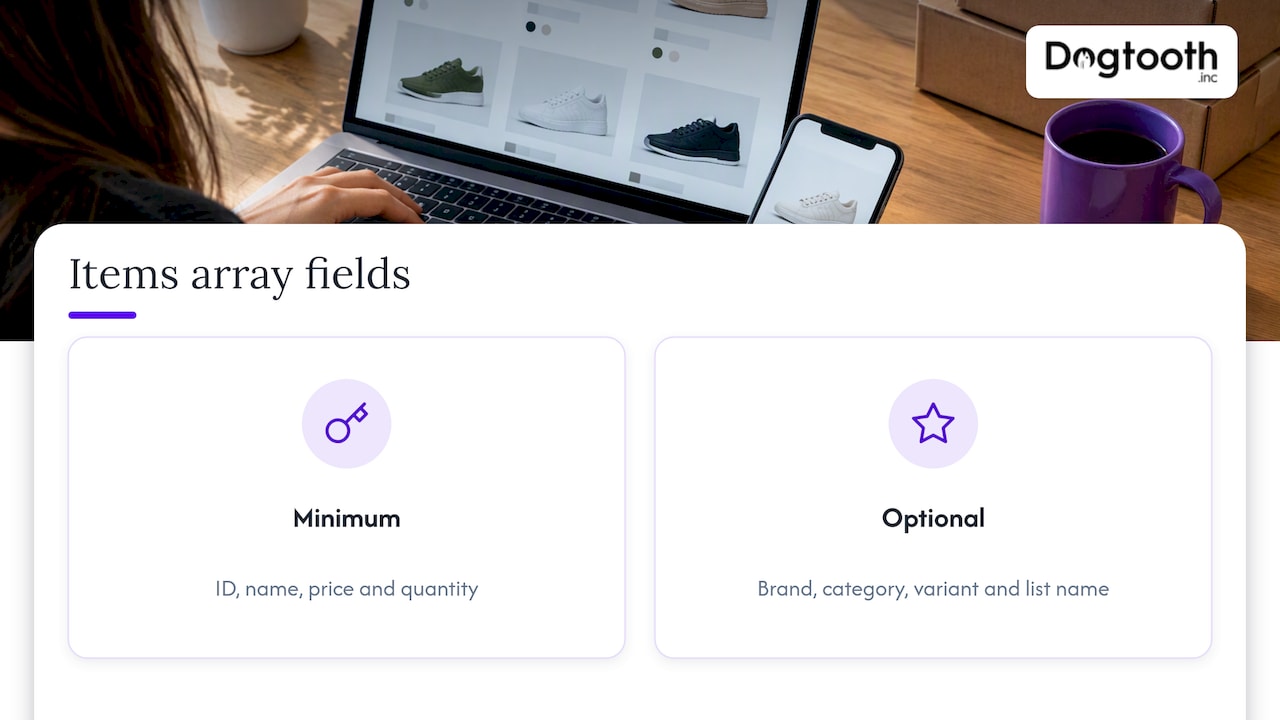
Products travel in an items array. Google’s developer documentation recommends sending every available parameter to maximize reporting accuracy, even when some are optional, and allows up to 27 custom parameters per item. In practice, make sure each item has at minimum an ID, a name, a price and a quantity. Add brand, category, variant and list name if your catalog has them, because those power the product reports you will actually use.
What the purchase event requires
Purchase is the event that matters most, and it is the one most often sent badly. According to Google’s event reference, it needs:
- currency: the currency code, such as USD
- value: the sum of price times quantity for the items
- transaction_id: a unique order identifier
- items: the array of purchased products
The transaction_id is what lets GA4 avoid reporting duplicate transactions. If a customer reloads the confirmation page, the same ID arrives twice and the order is counted once. Send the order number from your platform, never a random value generated on the page.
Google also advises setting the currency at the event level whenever you send a value, otherwise revenue may not report correctly.
How to set up GA4 ecommerce tracking
Google’s documentation says you add ecommerce events either directly in your site’s source code after the Google tag, or through the data layer in Google Tag Manager, with an event tag configured for each action you want to measure. A developer is normally needed, although website builders often include ecommerce events in their code already.
Step 1: Confirm the base tag works
Create your GA4 property and web data stream, install the Google tag, and confirm page views arrive. Ecommerce events ride on top of this. If the base tag is broken, nothing downstream will be right.
Step 2: Choose one implementation route
Pick either hardcoded gtag events or Google Tag Manager with a data layer. Do not mix them for the same events.
- Hardcoded: Simple for small catalogs and fixed templates. Every change needs a code deploy.
- Tag Manager and data layer: Your site pushes a structured ecommerce object at each moment, and Tag Manager forwards it to GA4. Marketers can adjust tags without touching the codebase, but the developer still builds the data layer.
For most stores with more than a handful of templates, the data layer route ages better.
Step 3: Push events at the right moments
The purchase event should fire on the page where the purchase is confirmed, such as a thank-you page, or on the user action that completes it. Fire the earlier events when the shopper actually does something: view_item when the product page renders, add_to_cart when the cart really changes, not when a button is merely hovered.
Step 4: Clear the ecommerce object between pushes
If you use a data layer, reset the ecommerce object before each new push so item data from an earlier event does not leak into the next one. This is a standard data layer habit, and skipping it creates strange item lists in reports.
Step 5: Test, then wait
Test in DebugView (below). Once the events are correctly implemented, data typically appears in reports within 24 to 48 hours, so do not judge the monetization reports on the first afternoon.
If your store runs on Shopify
Google’s setup help notes that on Shopify some events are tracked automatically through the Shopify Pixel. That gets you started, but automatic does not mean complete. Check which events arrive, whether purchase carries every parameter, and whether checkout customizations or apps change what fires. Our notes on Shopify checkout optimization cover how checkout extensions affect what you can measure, and the Shopify conversion rate breakdown shows what to do with funnel numbers once they are trustworthy.
How to test your GA4 ecommerce events
DebugView is the tool to use. It shows real-time data from your website so you can check that events are configured correctly and inspect their parameters and items. Google’s validation guide says it lets you confirm Analytics received both event-level and item-level parameters.
A reliable test pass looks like this:
- Turn on debug mode for your browser session.
- Walk the full path: open a category, open a product, add to cart, begin checkout, complete a test order.
- In DebugView, click each event and read the parameters. Confirm currency, value, transaction_id and every item.
- Check that value equals the sum of item price times quantity. A mismatch is the most common silent bug.
- Place the same test order twice with the same ID and confirm it is not double counted.
- Repeat on mobile and in the checkout paths most customers use, including any express payment buttons.
The express payment step matters. Wallet buttons often skip your normal confirmation page, so a purchase event that works in the standard flow can be missing from a large share of real orders.
Common GA4 ecommerce tracking errors
Google’s validation guide lists the typical causes of bad ecommerce data. Here is what each looks like in practice.
| Problem | What you see | Fix |
|---|---|---|
| Google tag and Tag Manager both sending the same event | Revenue and purchases roughly double | Keep one route per event |
| Event placed before the Google tag or outside JavaScript | Events missing entirely | Place code after the tag, inside a script |
| Syntax slip such as a missing comma | The whole event fails to send | Validate the object in DebugView |
| Missing required parameter | Purchase appears but revenue is zero or wrong | Send currency, value, transaction_id, items |
| No transaction_id | Reloads inflate orders | Use the platform’s real order number |
| Currency not set | Value not reported correctly | Set currency at the event level |
Google also states that ecommerce events must come after the Google tag in your page’s JavaScript to work.
A further pattern worth checking is reconciliation. Compare GA4 purchases and revenue with your store’s own order report for the same period. Small gaps are normal, since ad blockers, consent choices and browser restrictions stop some browser-side events. A gap of a few percent is a measurement limit. A gap of 20 percent is a bug.
Perspective: where browser tracking runs out
We build and migrate online stores for brands with real order volume, and the same pattern keeps appearing. The events are implemented, DebugView looks clean, and still the numbers disagree with the payment processor. The reason is almost never GA4 itself. It is that the browser is a weak place to record money. Customers close tabs before the confirmation page loads, wallet payments skip it, and privacy tools block scripts.
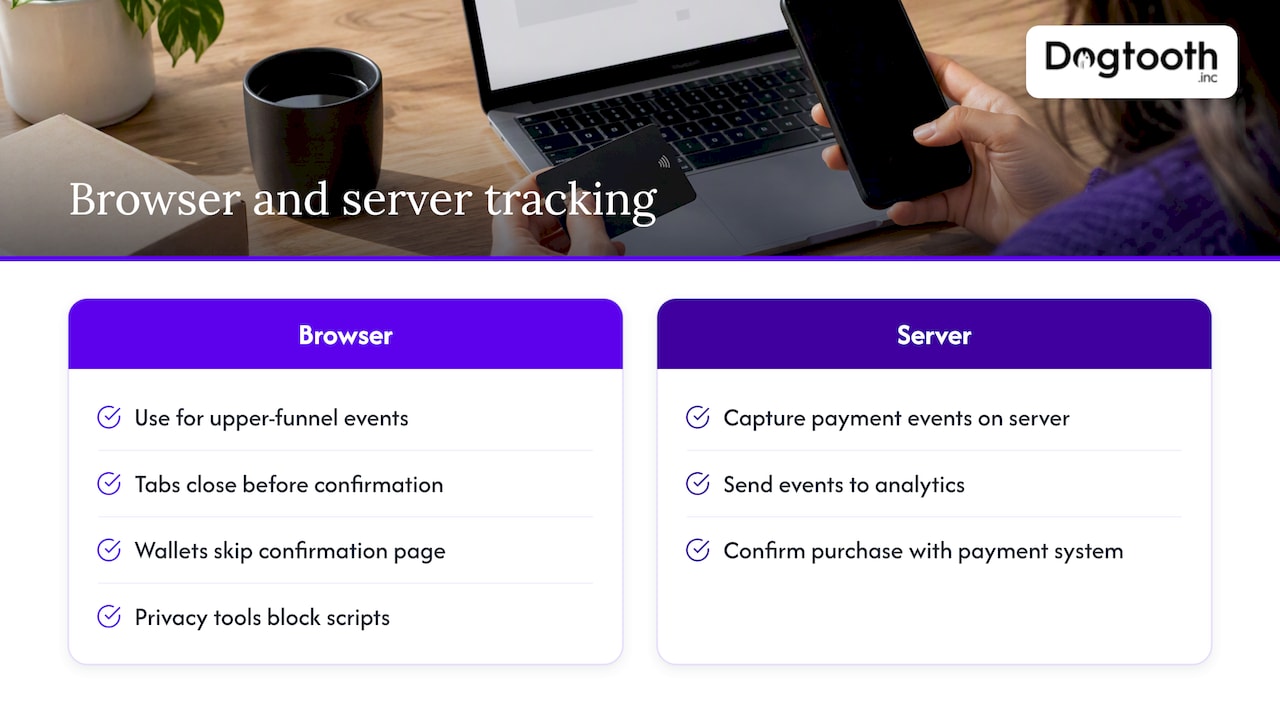
Our view is that the purchase event should be confirmed by the system that actually takes the payment. That is why we favor capturing payment events on the server and sending them to analytics, then keeping the browser events for the upper funnel, where small losses matter less. We wrote up the approach in server-side tracking for marketers, and it connects to attribution too: once the purchase record is reliable, you can build a privacy-aware custom attribution model on top of it instead of arguing about which dashboard is right.
The second thing we see is that tracking is treated as a launch task. It is not. Themes change, checkout apps get added, and a promotion banner gets rebuilt by a new developer. We run our own operation with the same discipline as client work, with automated checks in the loop, and we apply that to tracking: a short test order after every release is cheaper than a quarter of bad data.
— Chase Weir
Getting more from the data once it is clean
Reliable events unlock the next layer of work:
- Audiences: Build segments of cart abandoners or repeat buyers and send them to ad platforms.
- Product decisions: Compare view_item to add_to_cart by product to find pages that attract interest but fail to convert.
- Checkout fixes: Use the gap between begin_checkout and purchase, split by step, to decide what to change first.
- Email: Tie purchase data to lifecycle messages so win-back flows target the right customers. Clean sending also depends on list quality, and our guide to email list hygiene explains how to keep bounce rates down.
When to bring in an engineering partner
A small store on a standard platform can often implement the core events in a day or two. The cases that justify engineering help are different: a custom or headless checkout, a store running two platforms at once, a migration where history must stay comparable, or a high-volume store where a few percent of missing orders is real money.
That is the work we do at Dogtooth. Our e-commerce engineering covers Shopify and WooCommerce builds, integrations, server-side tracking and custom attribution, and our team stays on after launch to keep measurement accurate as the store changes. Two examples of the kind of projects involved: a craft brewery connecting its POS to Shopify, and a dual-platform store running Shopify and WooCommerce, where consistent event naming across both platforms was the point.
If your GA4 revenue does not match your orders, talk to Dogtooth about an audit and a fix.
FAQ
Do I need a developer to set up GA4 ecommerce tracking?
Usually yes. Google’s help says a developer needs to implement ecommerce events on a site or app, although website builders often have them built in. Tag Manager lets non-developers manage tags, but the data layer that feeds it still has to be coded.
How long until ecommerce data shows up in GA4?
Google says data typically appears in reports within 24 to 48 hours after events are successfully implemented. For immediate checking, use DebugView, which shows events in real time.
Is there a difference between GA4 ecommerce and enhanced ecommerce?
Enhanced ecommerce was the Universal Analytics add-on. In GA4 the same shopping journey is covered by built-in recommended events, so there is nothing separate to enable. What matters is how many events and parameters you send.
Why is my GA4 revenue higher than my store’s?
The usual culprits are duplicate events from running both the Google tag and Tag Manager, a missing transaction_id that lets reloads count twice, or a value that includes tax or shipping differently from your store. Reconcile one day of orders line by line to find which it is.
Why is my GA4 revenue lower than my store’s?
Some orders never reach the browser-side purchase event. Wallet payments, closed tabs, blockers and consent choices all contribute. Capturing the purchase on the server is the most dependable way to narrow the gap.
Sources
- [GA4] Ecommerce in Google Analytics - Analytics Help
- [GA4] Set up ecommerce events - Analytics Help
- [GA4] Recommended events - Analytics Help
- Recommended events reference - Google for Developers
- Measure ecommerce - Google for Developers
- Set up a purchase event - Google for Developers
- Validate your ecommerce setup (gtag.js) - Google for Developers