Shopify Flow is the free automation app built into Shopify. It watches your store for an event, such as a new order, checks a condition, and runs an action, such as tagging the customer or alerting your team. For most stores, the best Flow automation is a small set of well-tested order, inventory and risk workflows. When those workflows need to reach your ERP, POS, email stack or an AI agent, the work becomes integration engineering, and that is where a senior team pays for itself.
This guide covers how Flow works, what it costs, how to build and test a workflow, which order automations to start with, and where in-store automation hands off to custom systems.
TL;DR
- Flow is a free app on the Basic, Grow, Advanced and Plus plans. Every workflow is a trigger, a condition and an action.
- Start with order tagging, high-risk order handling and inventory alerts. They save the most manual work for the least build effort.
- Pick event triggers for things that happen once, and scheduled triggers for recurring reports and clean-ups.
- Test before you turn a workflow on, then watch the run log, which keeps runs for only 14 days.
- When a workflow must talk to systems outside Shopify, treat it as an integration project, not a bigger Flow canvas.
Table of Contents
- How Shopify Flow works
- Which plans include Flow
- Build your first workflow, step by step
- Order automation examples worth building first
- Test before you turn anything on
- Monitor runs and stop failures fast
- Where Flow stops and integration work starts
- Design rules that keep workflows healthy
- Our perspective
- Put your order workflows on a stronger base
- FAQ
- Sources
How Shopify Flow works
Shopify describes Flow as an automation platform that monitors your store for events and lets you build sequences of actions in response. Every workflow has three parts:
- Trigger: the event Flow watches for, such as an order being placed.
- Condition: a test that must be true, such as an order total of $500 or more.
- Action: what runs when the condition is met, such as tagging the customer as VIP. Shopify uses exactly this example on its Flow product page.
That is the whole model. Complexity comes from chaining many conditions and actions, and from the data each trigger carries.
What actions can do
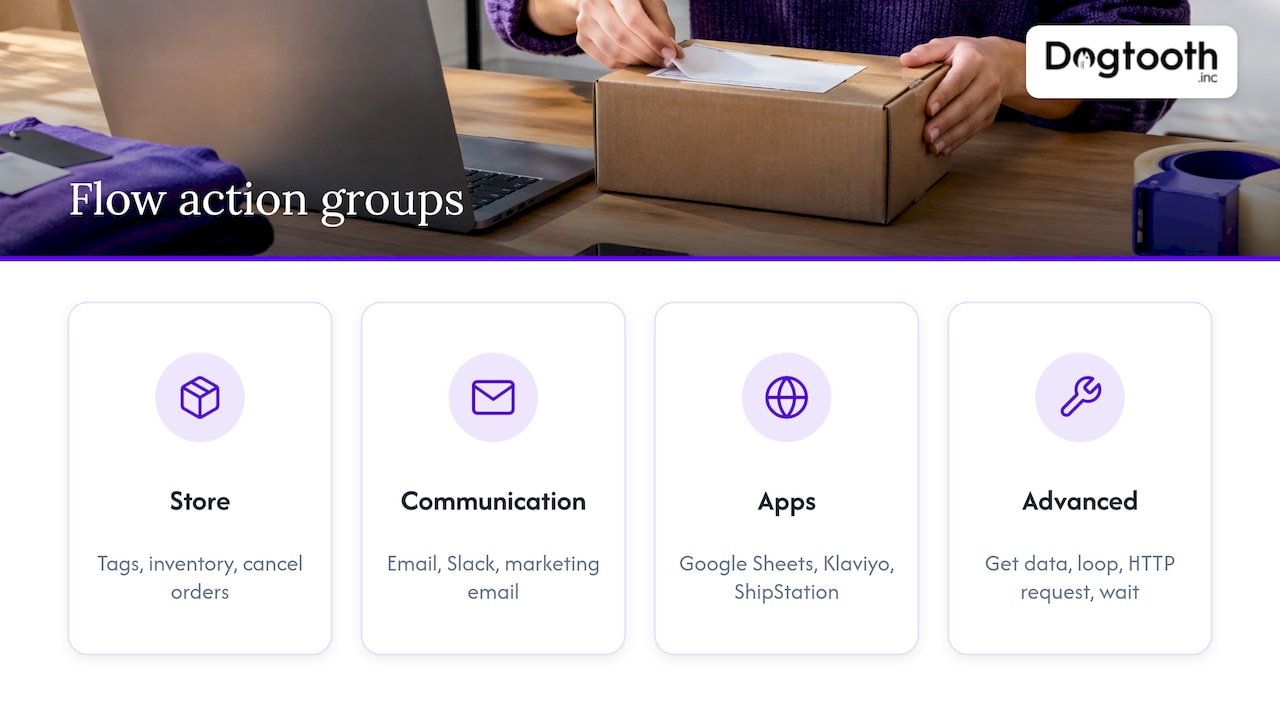
Shopify’s help pages group actions into store actions (tags, inventory, canceling orders), communication actions (email, Slack, marketing email), app actions (Google Sheets, Klaviyo, ShipStation) and advanced actions. The advanced group includes getting data, counting and summing, looping over lists, sending an HTTP request and waiting before the next step.
That last one matters more than it looks. Actions can run at the same time or in sequence, and the Wait action lets you hold a follow-up, for example waiting a day before a marketing email to a new customer, so steps happen in the right order.
Which plans include Flow
Flow is free on Basic, Grow, Advanced and Plus. Two details affect planning, both from Shopify’s Flow help page:
- The Send HTTP Request action is available on Grow, Advanced and Plus.
- Custom tasks from partner apps are available on Plus, and usage limits vary with your plan’s API limits.
Developers who build apps for Flow can add triggers and actions, but not conditions, and custom partner-app Flow extensions work only on Plus stores with the app installed. If your plan is on the lower tiers and you need an outside system involved, that shapes the architecture before anyone builds anything.
Build your first workflow, step by step
Shopify’s documented path to a manual workflow is short. These steps follow the Help Center instructions, with the places they usually go wrong.
- Open Flow. In your Shopify admin, go to Apps, then Flow, and click Create workflow.
- Choose a trigger. Pick the event that should start the workflow. Choose it by when the work should happen, not by what sounds closest. Shopify warns that an event trigger like Order fulfilled can go nearly a week without running, or fire many times in one day. For recurring jobs such as a daily out-of-stock list, use a scheduled trigger.
- Add a condition. Write the test in plain terms: order total, customer tag, product type, country. Keep the first version narrow. A condition that matches too many orders is the most common cause of noisy automation.
- Add an action on the True branch. Optionally add steps on the False branch and a note explaining why the workflow exists. The note saves the next person an hour.
- Name it and turn it on. Title the workflow clearly, then click Turn on workflow.
The shortcut is to click Browse templates, install a pre-made template, edit its placeholder values, test it and then turn it on. Templates are the fastest way to get a working baseline.
Constraints to plan around
Shopify’s help page lists several limits that trip up first builds:
- Workflows run as soon as possible, with no guaranteed completion time. Do not build anything that depends on a precise second.
- Orders and draft orders are separate. An order workflow applies only after a draft order converts into an order.
- Tag-based conditions may fail beyond 250 tags on an order, product or customer.
- Some GraphQL fields, including fulfillments, UTM parameters and risk levels, populate asynchronously, so a condition that reads them can see an empty value if it runs too early.
The last one is the quiet killer. A workflow that checks risk level the instant an order lands can behave differently in testing than in production. Test with real records, and use a Wait step where the data needs time to arrive.
A newer option is worth knowing. Shopify reports that Sidekick can build a workflow from a plain-language prompt, for example tagging customers as VIP when they place an order over $200, and that Sidekick never activates a workflow on its own. You review it and decide when it goes live.
Order automation examples worth building first
Shopify’s workflow examples page shows what order automation looks like in practice. Order workflows can tag orders, notify staff about orders that need special attention and send order details to an app. Included templates cover emailing logistics about expedited orders, flagging unusually large order quantities and tagging gift-card orders. Flow can also archive orders once they are fulfilled automatically.
Here is how those become a starter set for a store with real volume.
1. Tag and route by order value or customer type
Trigger on Order created, check the total or the customer’s history, and tag accordingly. Tags then drive everything downstream: priority packing, VIP service queues, wholesale handling. Shopify’s own use cases for this trigger include tagging VIP customers, flagging high-risk orders and routing fulfillment.
2. Handle risky orders before they ship
The Order risk analyzed trigger uses Shopify’s own risk analysis, not results from third-party apps. According to Shopify, it can tag high-risk orders for later processing, prevent payment capture on manually captured stores, or cancel orders set to manual fulfillment. A simple pattern is to tag the order, notify a reviewer in Slack, and let a person decide. Because risk data arrives asynchronously, test this one most carefully.
3. Confirm and sync paid orders
Order paid is the natural trigger for sending confirmations, capturing specific payments and updating external systems. This is where many stores first feel the edge of in-store automation: the update to an outside system works for one tool, then a second and third system appear, each with different data rules.
4. Report on a schedule
Scheduled triggers handle daily sales reports, weekly inventory checks and monthly clean-up tasks. A morning message with yesterday’s out-of-stock products does more for a merchandising team than another dashboard nobody opens.
5. Alert on inventory
Tag products when stock falls below a threshold, message the buyer, and create a task when something hits zero. These are low-risk workflows because they inform people rather than change the store, which makes them a good place to build confidence.
If you want automation to extend past the store into search visibility, tools cover keyword research, content planning and publishing, and sit alongside order workflows rather than replacing them.
Test before you turn anything on
Shopify says you can test a workflow at any time, before or after activation. You have three ways to supply trigger data: record live events, select an existing store record such as a real order, or generate simulated events with Sidekick. Test runs use real store data for the logic but stop at the first action that would change the store, and they do not appear in the Recent runs list.
A May 14, 2026 changelog entry adds that Sidekick can analyze a workflow and find real shop data to test its logical paths, and you can edit those cases before testing.
A practical test routine:
- Test the True branch with an order that should match.
- Test the False branch with one that should not.
- Test an edge case: a draft order, a refunded order, an order with many tags.
- Read what the last action would have done before you activate.
Monitor runs and stop failures fast
After go-live, use the Flow activity page. Runs are logged and stored for 14 days and can be filtered by workflow, errors, start time, trigger type, retry status, run ID and tags. Statuses include In progress, Waiting, Rate limited, Canceled and Completed.
Two habits matter here:
- Because the log keeps only 14 days, export or record anything you need for audits, such as why a batch of orders was canceled.
- If a workflow starts failing, cancel the runs. Shopify reports that you can cancel failing runs individually or in bulk, that the queue clears in about 10 seconds, and that canceling does not count against operation limits.
You can also run an activated workflow by hand on a specific order, draft order, product or customer through More actions, then Run Flow automation, as long as the workflow has a matching trigger. That is useful for backfilling tags after you ship a new workflow.
Where Flow stops and integration work starts
Flow is excellent at reacting to what happens in Shopify. The harder question for a brand doing real volume is what must happen in the other systems around it: the warehouse, the POS, the accounting platform, the email program, the attribution stack.
Three signs that a workflow has become an integration project:
- The data has to come back. Sending an order to another system is easy. Reconciling what that system did with the order is not.
- Several systems must agree. When inventory lives in a POS and a storefront at once, the workflow needs a source of truth, not another trigger.
- A person is doing judgment work. Drafting replies, checking exceptions, booking appointments and building reports are tasks an AI agent can take on inside the workflow.
This is the territory we work in. Our E-commerce Engineering and Integrations & APIs services cover Shopify builds and the connections between a store and the rest of the operation. One example is our craft brewery POS and Shopify integration. For the broader picture of agents inside operations, read our guide to AI workflow automation. If old APIs are the bottleneck, see our approach to API modernization without a big bang.
Automation also sits next to store performance. A clean order workflow does not help if checkout leaks or pages load slowly, so pair it with our guides on Shopify checkout optimization and Shopify speed optimization.
Design rules that keep workflows healthy
Every team that scales Flow eventually writes the same rules down.
- One workflow, one job. Small workflows are easier to test and cancel.
- Name by outcome. “Tag orders over $500 as VIP” beats “Order workflow 3”.
- Use notes. Record who asked for the workflow and why.
- Prefer tags with a naming convention. With the 250-tag limit in mind, retire tags that no longer drive an action.
- Separate informing from changing. Start with alerts, then graduate to workflows that cancel, capture or archive.
- Review quarterly. Stores change, and a condition written for last year’s catalog can quietly misfire.
Our perspective
We think of Flow as the nervous system of a Shopify store: fast, reliable at reflexes, and the right place to start. The mistake we see in the market is treating it as the whole plan. The real value comes when the reflexes connect to the rest of the business.
That is how we run our own operation. We use an in-house AI campaign manager that drafts on-brand emails, runs compliance checks, tests inbox delivery and schedules sends on a single approval. The pattern is the same one a store needs: automation does the drafting and checking, and a person approves.
The same idea applies to orders. An agent that drafts, checks, books and reports inside the workflow takes work off a team instead of adding a new dashboard. One of our agents books sessions, charges cards and sends invites for three brands at once.
We ship weekly and stay on after launch, because workflows are never finished. Catalogs, carriers and channels change, and the automation has to change with them.
Chase Weir
Put your order workflows on a stronger base
If your store has outgrown a handful of tags and alerts, we build the layer around Flow: integrations, AI agents that work inside your real workflows, and the custom platforms behind them. Our senior-led team ships weekly and stays on after launch.

Tell us which systems your orders touch, and we will map where automation can take work off your team. Start at Dogtooth Inc.
FAQ
Is Shopify Flow free?
Yes. Flow is a free app on the Basic, Grow, Advanced and Plus plans. Some capabilities depend on plan: Send HTTP Request needs Grow or higher, and custom partner-app tasks need Plus.
Can Shopify Flow automate order processing?
Yes. Order workflows can tag orders, alert staff, send details to apps, flag large quantities, handle gift-card orders and archive fulfilled orders. Risk-based workflows can tag, hold or cancel orders based on Shopify’s own risk analysis.
How long does Flow keep a record of runs?
Runs are stored for 14 days. Filter by workflow, errors or trigger to find a failure, and keep your own record of anything you need for longer.
What should I do when a workflow needs to reach other systems?
For a single simple call, the HTTP request action may be enough on eligible plans. When several systems must stay in agreement, plan it as an integration project with a clear source of truth. That is the kind of work we scope for brands with established operations.
Sources
- Shopify Help Center: Shopify Flow
- Shopify: Workflow Automation made easy with Shopify Flow
- Shopify Help Center: Creating workflows manually or from a template
- Shopify Help Center: Examples of workflows in Shopify Flow
- Shopify Help Center: Understanding triggers in Shopify Flow
- Shopify Help Center: Understanding actions in Shopify Flow
- Shopify Help Center: Testing a workflow in Shopify Flow
- Shopify Help Center: Finding and monitoring workflow runs
- Shopify Help Center: Running workflows manually
- Shopify.dev: About Flow
- Shopify blog: How Shopify Flow Automation Got Faster, Safer, and Smarter
- Shopify changelog: Make test events for your workflows with existing data