
To speed up a Shopify store, measure real-user data first. Find the slowest phase of the page load. Then fix the biggest cause, which is almost always the theme code, the installed apps and third-party scripts, or an oversized or wrongly loaded hero image. Shopify’s own help center names the theme, apps and manually added third-party code (tag managers and their tags included) as the biggest factors in store performance. The hosting is not the problem. This guide shows how to find your bottleneck and fix it without breaking tracking, design or conversion.
TL;DR
- Track the three Core Web Vitals: LCP, INP and CLS. TTFB and FCP are diagnostic metrics that help you find the cause of a slow LCP.
- Diagnose with real-user data before lab tools. Compare the gaps between TTFB, FCP and LCP to see which phase is slow.
- Never lazy-load the hero (LCP) image. Load it eagerly with high fetch priority, and use Shopify’s image filters so sizes and dimensions are set for you.
- Audit apps, app embeds and tracking tags first. Uninstalling an app does not always remove its code.
- Treat speed as a cycle you repeat after every theme change or app install, not a one-time project.
Table of Contents
- Why Shopify stores get slow
- Step 1: Measure before you change anything
- Step 2: Fix your images the right way
- Step 3: Clean up the theme
- Step 4: Audit apps, embeds and tracking scripts
- Step 5: Verify, then keep it fast
- A sensible order of work
- Our perspective
- Need a faster store without a rebuild?
- FAQ
- Sources
Why Shopify stores get slow
Shopify’s platform is not the weak point. The help center states that stores run on fast global servers behind a Cloudflare CDN, and that images are automatically optimized through an image CDN that serves a suitable format at a compressed, resized size (Shopify Help Center). What slows a store is what you put on top of that foundation.
Three layers account for most problems:
- The theme. Shopify renders Liquid templates on the server for every page request, so the time spent running Liquid directly sets TTFB. A slow server render delays everything after it, including painting content, discovering images and running dependent scripts (Shopify performance best practices).
- JavaScript. Whether it comes from the theme or from apps, JavaScript runs on the browser’s main thread and competes with rendering and input handling. Too much script, loaded at the wrong time or written inefficiently, is one of the main causes of poor INP and delayed LCP (same source).
- Third-party code. Tag managers, pixels, chat widgets, review apps, pop-ups and A/B testing tools pile up over the years, and nobody owns the full list.
Shopify’s performance team has also listed the usual suspects by metric. Slow TTFB tends to come from complex Liquid. Slow first paint tends to come from render-blocking resources, anti-flicker snippets and huge HTML. Slow LCP tends to come from a lazy-loaded hero image, a late-discovered image, JavaScript-rendered content, or a cookie banner or email pop-up becoming the largest element on screen (Shopify Performance team).
Step 1: Measure before you change anything
The most common mistake is running a single Lighthouse test, seeing a red score and installing something. A better process follows the order Shopify recommends.
Use real-user data to find the slow phase
Shopify’s developer documentation advises using real-user monitoring (RUM) data before opening any lab tool. Pick one page type (product pages are usually the money pages) and one device segment, usually mobile. Compare TTFB, FCP and LCP at the same percentile. Subtract TTFB from FCP, and FCP from LCP. The largest gap is your suspect phase, and you then reproduce that phase in a lab test configured to match that segment.
The pattern tells you where to look:
| What you see | Likely cause | Where to start |
|---|---|---|
| Slow TTFB, with FCP and LCP following quickly | Server response, usually complex Liquid | Theme code, loops, metafield lookups |
| Fast TTFB, slow FCP | Initial rendering is blocked | Anti-flicker snippets, render-blocking CSS or scripts |
| Fast TTFB and FCP, late LCP | A problem with the LCP element itself | Hero image loading, sizing, or a pop-up taking over |
This reading comes from the Shopify Performance team’s debugging guide.
Know the numbers you are aiming for
Core Web Vitals are the three metrics Google uses to summarize real-user page experience. Shopify’s enterprise blog lists the “good” thresholds, which at least 75% of page loads must meet: LCP within 2.5 seconds, INP within 200 milliseconds and CLS at 0.1 or below. A page passes only when all three are good, and mobile and desktop are assessed separately, with mobile being the harder bar.
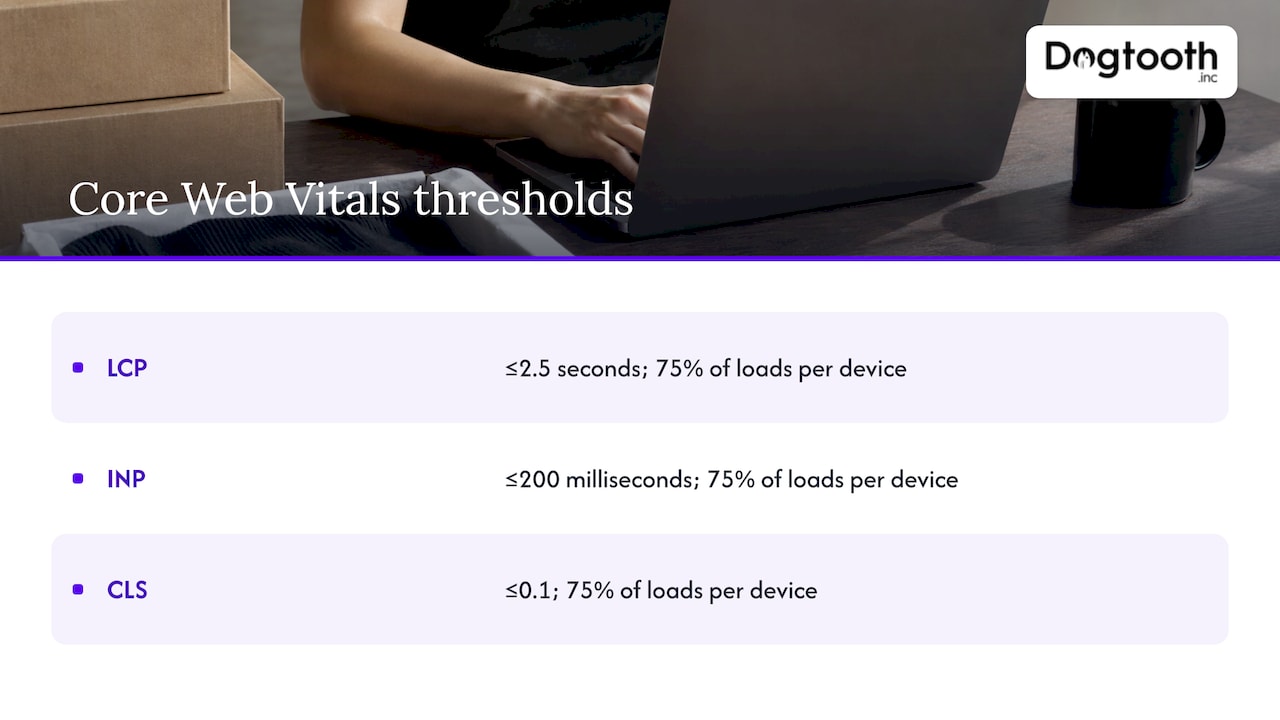
If you are comparing caching plugins for Shopify, check them against these real-user thresholds rather than a single synthetic score, because a plugin that lifts a lab number may not move what shoppers experience. A is a reasonable place to see what that category offers. Remember that Shopify already serves your pages through a CDN, so the biggest gains usually come from your own theme and scripts.
Lab data versus field data
The two answer different questions. Field data comes from actual users across devices, networks and locations. Lab data comes from one controlled test. Shopify advises using field data to identify a problem, lab data to debug it, then field data again to confirm the fix. Two cautions from the same page: INP has no real lab equivalent because it depends on actual interactions, and a regression shipped yesterday can hide inside a 28-day CrUX window.
When you do run Lighthouse, run it several times. A single run can swing by 5 to 10 points from CPU and network variability, so compare median scores before and after a change.
Step 2: Fix your images the right way
Images are usually the heaviest part of a product page and the most frequent LCP element. The goal is not the smallest possible file. It is a file small enough to load fast and still good enough to sell the product.
Never lazy-load the hero image
This is the single most common self-inflicted wound. Many themes lazy-load every image by default, including the one the shopper sees first. Shopify’s guidance is clear: the LCP image should load eagerly with fetchpriority="high", images visible in the initial viewport should load eagerly, and loading="lazy" belongs only on images below the fold (Shopify performance best practices).
Other LCP traps the documentation lists: the hero set as a CSS background (the preload scanner cannot find it until the stylesheet is parsed), JavaScript rendering the hero, and an image far larger than the space it fills because widths and sizes were never set (Shopify performance gaps).
Let Liquid generate responsive images
Use the image_tag filter with image_url instead of hand-built <img> markup. Shopify’s guidance is to generate a srcset with four to six widths, because too many widths hurts caching and makes the browser weigh more options. For lazy-loaded images, set sizes to auto so the browser uses the image’s own layout width to pick a source (responsive images guide).
image_tag also adds correct width and height attributes from the original aspect ratio. That reserves space before the image loads and prevents layout shift, which protects your CLS score.
Shopify’s CDN serves WebP or AVIF automatically when the browser supports them, which the documentation says reduces file size by 25 to 35 percent. Build URLs through Liquid filter chains rather than by hand, and you get that along with proper cache invalidation.
A practical image checklist
- Upload sources at a sensible size. A 4000-pixel hero is wasted bytes on a phone, so export it near the largest width the layout actually displays.
- Compress before upload. The CDN converts formats, but it will not rescue a bloated source file.
- Check zoom-heavy products at real storefront size. Fabric texture, jewelry edges, small label text and fine surface detail show compression damage first.
- Keep video out of the first load. Product videos should start when the shopper asks for them, not during the initial render.
- Audit collection pages separately. A grid of 48 images with lazy loading set correctly is a different problem from a single hero.
Step 3: Clean up the theme
A fast theme is mostly a restrained theme. Shopify’s documentation points to a few habits that make the difference.
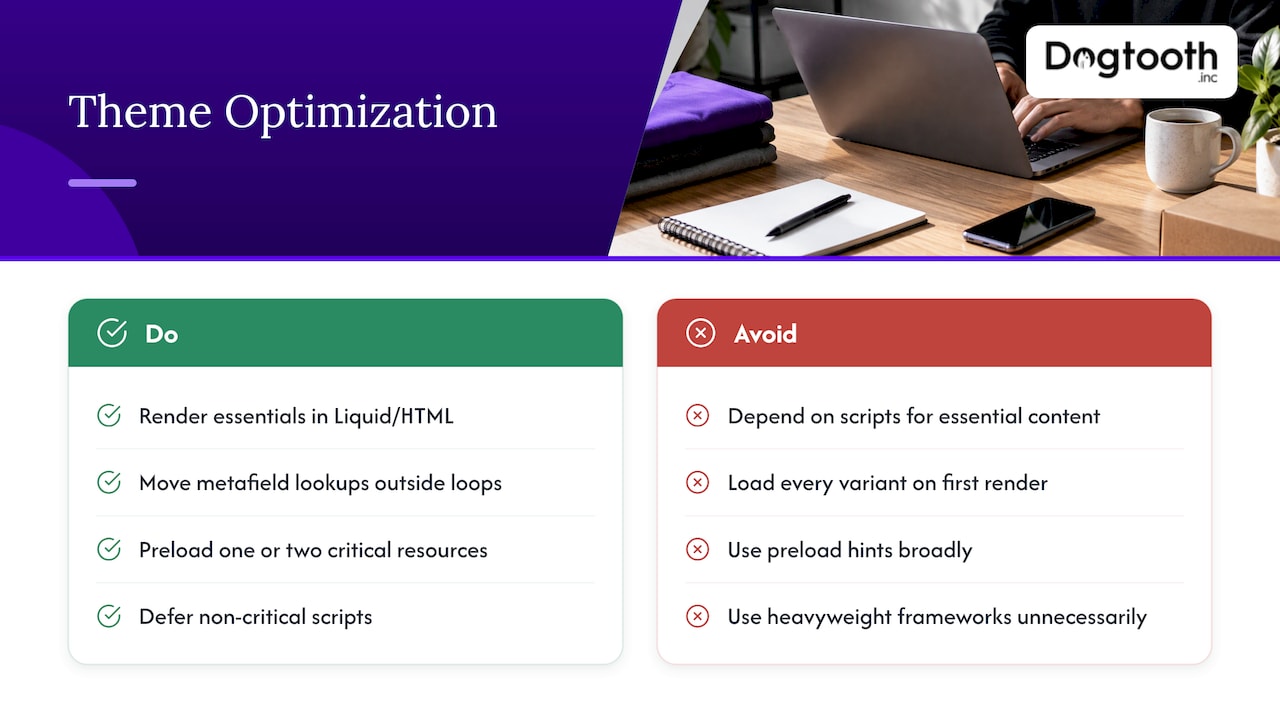
Render essential content in Liquid and HTML, not JavaScript. Content that depends on script to appear delays LCP and can harm SEO.
Watch your loops. Deeply nested Liquid loops grow quadratically with catalog size. Move metafield lookups outside loops, and load only the variant data the page needs for its first render rather than every variant (performance best practices).
Load first-paint resources early. Place stylesheets and fonts needed for the first paint before content_for_header, so they download while Liquid is still running. Use preload hints sparingly, for one or two critical resources only.
Apply small Liquid savings. Cache filter results with assign and use echo instead of repeated append or prepend. Shopify says these can save 25 to 50 ms of TTFB on complex themes.
Defer what is not needed now. Load non-critical scripts later, import modules on interaction rather than at page load, and skip heavyweight frameworks when Liquid and CSS can do the job.
Also check for the problems that come from the surrounding setup. Shopify lists a proxy placed in front of the Shopify CDN, and app proxies or server-side app logic in the request path, among the common causes of slow TTFB.
Step 4: Audit apps, embeds and tracking scripts
For most mature stores this is where the largest win hides. Every app adds something: a script, a stylesheet, a snippet, an embed. Individually each looks harmless. Together they hit every Core Web Vital. Shopify’s documentation explains the mechanism: scripts that run during interactions block the browser from responding (INP), render-blocking scripts delay first paint (FCP), scripts that delay resource discovery push back the hero (LCP), and long tasks raise Total Blocking Time, which correlates with INP in the field (audit and remove third-party scripts).
A workable audit sequence
- Inventory everything. Run a Lighthouse Treemap to see all JavaScript grouped by origin with byte sizes. Open the Chrome DevTools Coverage tab on representative templates (home, collection, product, cart) to spot scripts with large amounts of unused code.
- Ask who needs each script. Check with marketing and other stakeholders. Typical bloat includes duplicate analytics, A/B testing tools, chat widgets, review apps, email capture dialogs and marketing pixels.
- Remove leftovers properly. Uninstalling an app does not always remove its code. Search theme files for the app name, check the snippets directory, and look for render or include tags that reference app snippets.
- Load the rest conditionally. Use Liquid template checks so a review widget loads only on product pages and a store locator only on its own page.
- Re-measure. Compare median results before and after, and keep a note of what each removal changed.
Tracking deserves special care, because deleting a pixel can quietly break attribution. If your tags are heavy, moving some collection to the server can lighten the page without losing data. Our guide to server-side tracking for marketers explains how payment events are captured, and our GA4 ecommerce tracking walkthrough covers testing so nothing is lost in the cleanup.
Step 5: Verify, then keep it fast
Shopify’s guidance is that a sustainable performance practice is a cycle you repeat, not a checklist you finish once. Each pass takes on the next most impactful opportunity, and you prioritize by impact on users rather than by what is easiest.
In practice:
- Review the Web Performance dashboard and CrUX data weekly or every other week.
- Watch for gradual creep, jumps tied to a deploy or app install, and trouble in one segment such as a single country or device.
- After shipping a change, wait for enough real-user data before declaring victory.
- Treat a new Moderate or Poor rating as something to fix, not a trend to watch. Shopify’s enterprise blog notes that its Web Performance reports mark app installs, theme updates and code changes on the timeline, that data can lag by up to 36 hours, and that the view covers the last 90 days (Shopify enterprise blog).
One more caution from Shopify’s lab-versus-field page: RUM only includes users who actually loaded the page, so the average user in your data is often faster than your real average user. Do not over-trust a good-looking dashboard when support tickets say otherwise.
A sensible order of work
If you want a plan rather than a pile of tips, this order tends to pay off fastest:
- Pull RUM data for mobile product pages and find the largest gap between TTFB, FCP and LCP.
- Fix the hero image: eager loading, high fetch priority, correct dimensions, sensible source size.
- Audit apps and embeds, remove what is unused, and clean leftover code from the theme files.
- Conditionally load what remains.
- Tackle Liquid inefficiencies if TTFB is still your largest gap.
- Set a recurring review, and re-check after every app install or theme edit.
Speed also feeds revenue work further down the funnel. Once pages load well, the next gains usually sit in the buying journey, which we cover in our posts on Shopify conversion rate fixes and Shopify checkout optimization.
Our perspective
We see the same pattern on stores with real volume: the platform is rarely the problem. A theme that grew by accretion, a dozen apps nobody owns and a tag manager full of forgotten pixels are. Nobody decided to make the store slow. It happened one reasonable request at a time.
That is why we treat speed as engineering work, not a plugin purchase. A senior engineer reads the real-user data, finds the phase that is failing, and fixes it at the source: the Liquid, the loading order, the script that should only run on one template. Then the store gets measured again.
We also run our own operation the way we build for clients, with AI in the loop and a weekly shipping rhythm. The same discipline applies to a storefront. Small changes, measured one at a time, with someone staying on after launch to make sure performance does not drift back as new apps and campaigns arrive.
Chase Weir
Need a faster store without a rebuild?
If your team has the data but not the engineering time, Dogtooth’s e-commerce engineering covers Shopify and WooCommerce builds and optimizations. We dig into theme code, app and script load, and tracking so cleanup does not cost you attribution. We work with a senior team that ships weekly and stays on after launch.

Tell us which page types are slow and what your real-user numbers show. Talk to Dogtooth about your store.
FAQ
Why does my Shopify store run slow?
Usually because of what sits on top of the platform: the theme, installed apps and manually added third-party code such as tag managers and their tags. Shopify names these as the biggest factors in store performance. Start by finding which phase of the page load is slowest, then trace it to its cause.
Should I lazy-load all my Shopify images?
No. Lazy-load images below the fold, but load the hero (LCP) image eagerly with high fetch priority. Lazy-loading the hero is one of the most common reasons LCP is late, and many themes do it by default through a setting or section.
How often should I check Shopify performance?
Check after every significant change, such as an app install, theme update or code edit, rather than waiting for a quarterly review. Shopify’s reports mark those events on the timeline, so you can tie a drop to its cause. A weekly or biweekly look at real-user data catches gradual creep.
Which metrics matter most for Shopify speed?
The three Core Web Vitals: LCP within 2.5 seconds, INP within 200 milliseconds and CLS at 0.1 or below, measured on real users. TTFB and FCP are not scored by Google, but they help you find the cause of a slow LCP.
Sources
- Improving your online store performance, Shopify Help Center
- Performance best practices for Shopify themes
- Debugging common causes for slow loading in Shopify Liquid storefronts
- Debugging performance with metric gaps
- Website Performance: Metrics, Tools, and Tips (2026)
- Lab vs. field data: understanding your performance metrics
- Testing for performance
- Serve correctly sized images with srcset and sizes
- Prevent image layout shift with width and height
- Use Liquid filter chains instead of manual URL construction
- Audit and remove third-party scripts
- Build a sustainable performance practice