To set up SPF and DKIM, you publish two kinds of DNS records for every domain that sends your email: one SPF TXT record listing the servers allowed to send for you, and one DKIM public key per sending service so receivers can verify your signature. Then you add a DMARC record that tells inbox providers what to do when a message fails both. Done in that order, with every sender inventoried first, it takes an afternoon. Done blind, it quietly sends your invoices and campaigns to spam. If your domain sends through several platforms, a CRM, a store, a helpdesk and a newsletter tool, the inventory is the hard part, and it is where our team at Dogtooth spends the most time on email infrastructure work.
TL;DR
- Publish exactly one SPF TXT record per sending domain, and merge new senders into it instead of adding a second one.
- Turn on DKIM signing in each sending platform, then publish the public key it gives you at the selector name it specifies.
- Add DMARC after SPF and DKIM pass, start at p=none with a reporting address, and tighten the policy only when reports show every legitimate sender aligned.
- Gmail has required authentication from all senders since February 1, 2024, and SPF, DKIM and DMARC together for anyone sending more than 5,000 messages a day to Gmail.
- Test with real messages, read the headers, and allow up to 48 hours for DNS changes before you conclude something is broken.
Table of Contents
- What SPF, DKIM and DMARC each do
- Why this is no longer optional
- Before you touch DNS: inventory every sender
- Step 1: Set up your SPF record
- Step 2: Set up DKIM
- Step 3: Add DMARC without locking out your own mail
- Step 4: Verify that everything passes
- Quick reference: what failing looks like
- Special cases that trip up growing senders
- Perspective: authentication is infrastructure, not a checkbox
- When the setup is bigger than a DNS edit
- FAQ
- Sources
What SPF, DKIM and DMARC each do
Three standards work as a set, and each answers a different question.
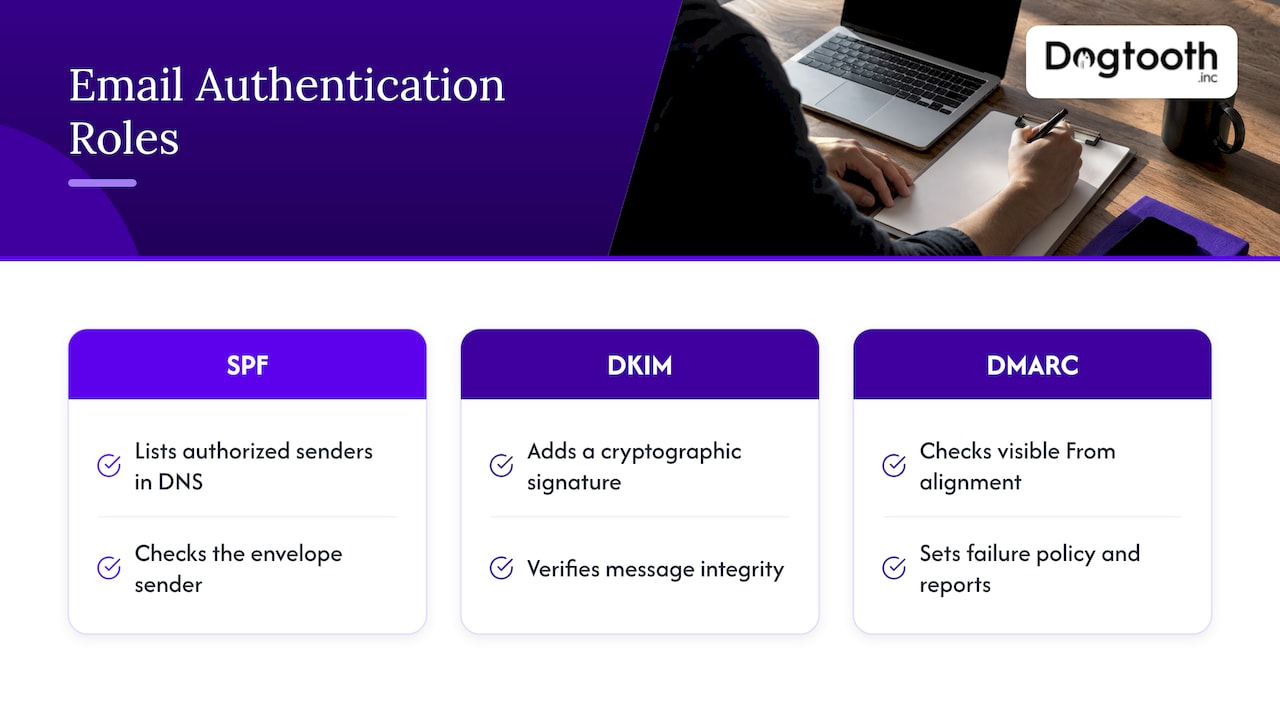
SPF (Sender Policy Framework) is a list, published in your DNS, of the servers allowed to send mail for your domain. Receivers check the sending server against it. Google describes SPF as a policy listing all authorized senders, and notes that a third-party sender you leave off the list is more likely to have its mail treated as spam.
DKIM (DomainKeys Identified Mail) adds a cryptographic signature to each message. Your sending platform signs with a private key; you publish the matching public key in DNS; the receiver uses it to confirm the message was not altered and really came from a system you authorized.
DMARC ties the two together. It checks that the domain in the visible From address lines up with the domain that passed SPF or DKIM (this is called alignment), then tells receivers how to handle failures and where to send reports. Microsoft’s documentation explains why this matters: SPF checks the hidden envelope sender (the MAIL FROM domain), not necessarily the From address people see, so SPF alone does not prove the visible sender is genuine.
In short: SPF says who may send, DKIM proves the message is intact, DMARC says what to do when the proof is missing.
Why this is no longer optional
Since February 1, 2024, Gmail’s sender guidelines have required every sender to authenticate with SPF or DKIM, keep valid forward and reverse DNS records, use TLS, hold spam complaint rates below 0.3%, and format messages to the RFC 5322 standard. Anyone sending more than 5,000 messages a day to Gmail addresses must use SPF, DKIM and DMARC, with the visible From domain aligned to SPF or DKIM. Google allows the DMARC policy to start at p=none.
That 5,000 figure is easy to cross if you count every platform together: order confirmations, abandoned-cart flows, newsletters and sales sequences all count toward the same domain’s volume. Even below it, unauthenticated mail simply performs worse. For brands that rely on email for revenue, authentication is the floor for deliverability, not an extra.
Before you touch DNS: inventory every sender
The most common cause of broken authentication is a forgotten sender, not a typo. Spend twenty minutes on this list first.
- Your mailbox provider. Google Workspace, Microsoft 365 or a hosting provider’s email.
- Marketing and CRM platforms. Newsletter tools, automation platforms, sales sequencers.
- Transactional senders. Your store, billing system, booking tool, app notifications and password resets.
- Support and internal tools. Helpdesk, scheduling software, HR and survey tools.
- Anything custom. Scripts, internal dashboards and AI agents that send mail through an API or SMTP relay.
For each one, write down the sending domain or subdomain, who administers it, and where its authentication settings live. You also need access to wherever your DNS is hosted, typically your registrar or a DNS provider, and a mailbox that can receive reports. Google’s administrator guidance lists the same prerequisites: identify third-party senders, check for an existing DMARC record, get DNS access and set up a reporting mailbox, then configure SPF and DKIM before DMARC.
One more rule: authentication is per domain. Microsoft states that each domain and subdomain needs its own SPF record, and subdomains do not inherit the parent’s. If marketing mail goes out from a subdomain such as mail.yourbrand.com, that subdomain needs its own records.
Step 1: Set up your SPF record
An SPF record is a TXT record on your domain that begins with v=spf1, lists your authorized senders, and ends with a rule for everything else.
What it takes
- Look up whether your domain already has an SPF record. Search your DNS for TXT records that start with v=spf1.
- Collect the include values from each sending platform’s setup page.
- Build one record that contains all of them.
- Publish it as a TXT record on the root domain (host @), or on the sending subdomain.
A simple record for a business on Google Workspace plus one marketing platform looks like this pattern:
v=spf1 include:_spf.google.com include:sendplatform.example -all
The include values come from each vendor, so copy theirs, not the placeholder above. For reference, GoDaddy publishes v=spf1 include:secureserver.net -all as the value for its hosting email.
The ending matters. A hard fail (-all) tells receivers to reject anything not listed, and a soft fail (~all) marks it as suspicious. Many teams start soft while they confirm the inventory, then move to hard.
Where it goes wrong
- Two SPF records. A domain must have only one. Enom’s guide says existing entries must be merged rather than adding a second v=spf1 record. Two records usually cause SPF to fail outright, and it is the mistake that appears most often when a new tool’s instructions are followed literally.
- Too many lookups. SPF evaluation is capped at 10 DNS lookups. Cloudflare’s documentation says going over can produce a permanent error, so receivers may reject or flag your mail. It also identifies include and mx references as mechanisms that consume lookups, and recommends removing entries you do not need. Every include can contain further includes, so five platforms can exhaust the budget faster than the record looks like it should.
- Retired vendors left in place. Old includes for tools you stopped using still cost lookups and widen who can send as you.
- Missing subdomains. A record on the root does nothing for mail sent from a subdomain.
This is the step where large, long-lived domains get tangled, because ten years of tool changes pile up in one TXT record. Untangling it means mapping which platforms actually send, removing the rest and keeping the record under the lookup cap. It is part of the Email Infrastructure and Deliverability work we do for clients with established sending operations.
Step 2: Set up DKIM
DKIM has more moving parts than SPF, but the logic is simple: the platform signs, your DNS publishes the key.
What it takes
- In each sending platform, find the domain authentication or DKIM section and add your domain.
- The platform shows a selector (a label that lets one domain hold several keys) and either a TXT record containing a public key or CNAME records pointing to keys it manages.
- Copy the record name and value exactly into your DNS. The host name follows the pattern SELECTOR._domainkey.yourdomain.com.
- Return to the platform and activate signing once it detects the record.
If you run your own mail server instead of using a platform, the process is the same, just manual. As OpenDKIM’s documentation describes it, you choose a selector, generate a private and public key pair, publish the public key as a TXT record at the selector’s _domainkey name, keep the private key stored safely, and test that signatures pass. Its example record begins v=DKIM1; t=y; p= followed by the base64 public key.
Key length. Google recommends at least 1024-bit DKIM keys for mail to personal Gmail accounts, and recommends 2048 bits where your provider supports it. Choose 2048 when offered.
Where it goes wrong
- Truncated or altered values. Some DNS panels add the domain automatically to the host name, producing selector._domainkey.yourdomain.com.yourdomain.com. Others strip quotes or break long keys. Paste exactly what the platform supplies and check how your panel handles the host field.
- Publishing but never enabling. The key sits in DNS, but the platform is still signing with its own shared domain, so DMARC alignment fails.
- One selector, many senders. Each platform needs its own selector so they do not overwrite each other.
- Waiting too little. GoDaddy notes that DNS changes generally take effect within an hour but can take up to 48 hours worldwide. Re-test before you change anything.
Step 3: Add DMARC without locking out your own mail
DMARC is a TXT record at _dmarc.yourdomain.com. Add it only after SPF and DKIM pass for your real senders, as Google’s administrator guidance says to configure those two first.
A safe starting record looks like this:
v=DMARC1; p=none; rua=mailto:dmarc-reports@yourdomain.com;
The p tag is the policy. GoDaddy describes the three levels this way: none monitors without taking action, quarantine sends failing mail to the junk folder, and reject blocks it. The rua tag is where aggregate reports go. GoDaddy’s own example record also sets adkim=r and aspf=r, which means relaxed alignment, so a subdomain of your domain can still align.
The path to enforcement
- Monitor at p=none. Read the aggregate reports for a few weeks. They show every source sending as your domain and whether it passed.
- Fix the legitimate failures. Usually a platform with DKIM not enabled or an SPF include missing.
- Move to quarantine once reports show only unauthorized sources failing.
- Move to reject when you are confident nothing legitimate is being caught.
Going straight to reject on day one is how companies discover a forgotten sender, such as an invoicing tool, when customers stop receiving receipts. We cover the full progression in our guide to moving from p=none to p=reject.
Step 4: Verify that everything passes
DNS looking right is not the same as mail passing. Verify with real messages.
- Send a test from each platform to a Gmail address you control.
- Open the original message headers (in Gmail, the Show original option). You are looking for SPF, DKIM and DMARC all marked PASS.
- Check alignment. The domain in the DKIM signature, or the SPF-passing domain, must match your visible From domain. A PASS on a vendor’s own domain does not satisfy DMARC.
- Watch the reports. Aggregate DMARC reports reveal senders you never listed.
- Monitor reputation. Google points senders to Postmaster Tools to track authentication and spam rates against the 0.3% threshold.
Authentication is the foundation, but it only proves identity, not that readers want your mail. Once you have it working, spam complaints and engagement decide placement. Open rates have also become a weaker signal since mailbox privacy changes, a trend covered in this look at email open rate trends, so authentication results and complaint rates give you a more reliable read on health. Our deliverability audit checklist covers what to examine after the records pass.
Quick reference: what failing looks like
| Symptom | Likely cause | Fix |
|---|---|---|
| SPF permerror in headers | More than 10 lookups, or two SPF records | Merge into one record and remove unused includes |
| SPF passes but DMARC fails | The envelope domain does not match the From domain | Enable DKIM signing with your own domain on that platform |
| DKIM fails or shows none | Key not published, wrong selector, or signing not enabled | Recheck the host name, value and platform toggle |
| Mail from a subdomain fails | Subdomain has no records of its own | Publish SPF and DKIM for that subdomain |
| New record seems ignored | DNS has not propagated | Wait, up to 48 hours, then retest |
| Customers stop getting receipts after enforcement | A legitimate sender was not authenticated | Return to p=none, read reports, fix the sender |
Special cases that trip up growing senders
Transactional and marketing on separate streams. Receipts and password resets carry different reputation risks than promotions. Many senders put them on separate subdomains with their own authentication. Our transactional email deliverability guide goes into that setup.
New domains and new senders. Authentication does not replace reputation. A fresh domain needs gradual volume increases, and our 8-week domain warming plan lays out the ramp.
Unsubscribe handling. Large inbox providers also expect easy unsubscribe for bulk mail. The List-Unsubscribe header guide covers setup and testing.
Platform migrations. Moving to a new e-commerce or CRM platform changes who sends your mail. Add the new platform’s SPF include and DKIM records before cutover, keep the old ones until the last message has left, then remove them.
Perspective: authentication is infrastructure, not a checkbox
Most teams treat SPF and DKIM as a one-time task: paste the records, see green ticks, move on. In our experience building and running email systems, the records are the easy part. The hard part is that your sending footprint keeps changing. A new store platform, a CRM switch, a booking tool, an AI agent that sends confirmations: each one is a new sender that can quietly break alignment.
That is why we build authentication into the platform design rather than bolting it on. When we design systems that send mail, whether a custom app, an e-commerce build or an AI workflow, the sending identity is decided up front, and the DNS records follow from it. We run our own campaign operation the same way, with compliance checks and inbox delivery tests before anything is sent on a single approval.
For high-volume senders, we also offer MailFurnace, our deliverability software, and a senior team that stays on after launch, so authentication stays correct as your stack evolves.
Chase Weir
When the setup is bigger than a DNS edit
For a single domain with one mailbox provider, the steps above are enough. For brands with several platforms, high volume, a migration underway or a damaged sender reputation, authentication becomes an infrastructure project. Dogtooth offers Email Infrastructure and Deliverability services, along with the MailFurnace deliverability software, for businesses with established sending operations. A senior team handles the work and stays on after launch.

If your email sits alongside a platform migration, a Shopify or GoHighLevel move, or custom attribution work, the sender inventory and authentication plan can be built into the same project instead of being fixed afterward.
FAQ
Do I need all three: SPF, DKIM and DMARC?
For most business senders, yes. Gmail requires SPF or DKIM from all senders, and all three for anyone sending more than 5,000 messages a day to Gmail. Even below that, having all three protects your domain from spoofing and gives you reports on who is sending as you.
Can a domain have more than one SPF record?
No. A domain must have only one SPF TXT record. If you add a second platform, merge its include into the existing record. Two separate v=spf1 records typically cause SPF to fail.
How long do SPF and DKIM changes take to work?
Often within an hour, but DNS changes can take up to 48 hours to reach every network. Wait that long before assuming a record is wrong, then send a fresh test message and read the headers.
What DMARC policy should I start with?
Start with p=none and a reporting address. This monitors without affecting delivery. Once reports show all legitimate senders passing and aligned, move to quarantine, then reject.
Why does SPF pass but DMARC still fail?
SPF checks the envelope sender, which may be your email vendor’s domain rather than your visible From domain. DMARC needs alignment with the From domain, so enable DKIM signing with your own domain in that platform.
Sources
- Email sender guidelines, Gmail Help
- Help prevent spoofing and spam with DMARC, Google Workspace Admin Help
- How email authentication works in Microsoft 365, Microsoft Learn
- Set Up SPF, DKIM, and DMARC for Enom Email
- Set up SPF, DKIM, or DMARC records for hosting email, GoDaddy Help
- DNS lookup limit, Cloudflare DMARC Management docs
- OpenDKIM README
- Email open rate trends